

Idea Manager
Make room for your next idea.
Capture a thought, find it again, and organise it your way with optional tools.
The app is still being tested. Public access is not available yet.
Start with a thought. Add structure when it helps.
Capture the spark
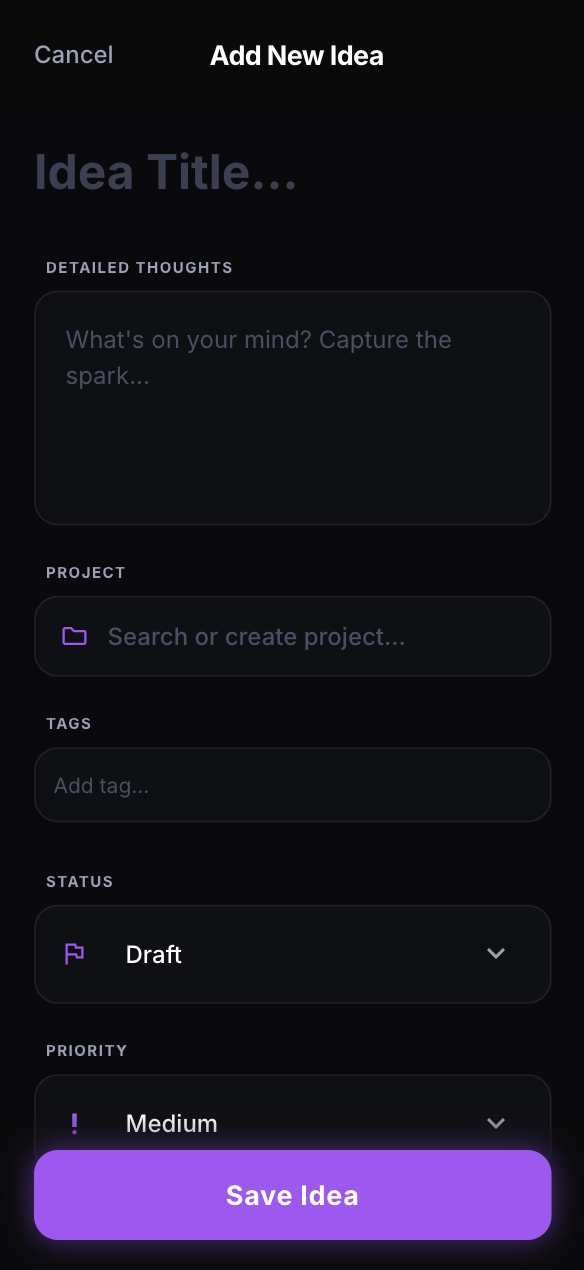
Start with a title and optional detailed thoughts. Keep capture simple; you can revisit and edit an idea when there is more to say.
Choose your own structure
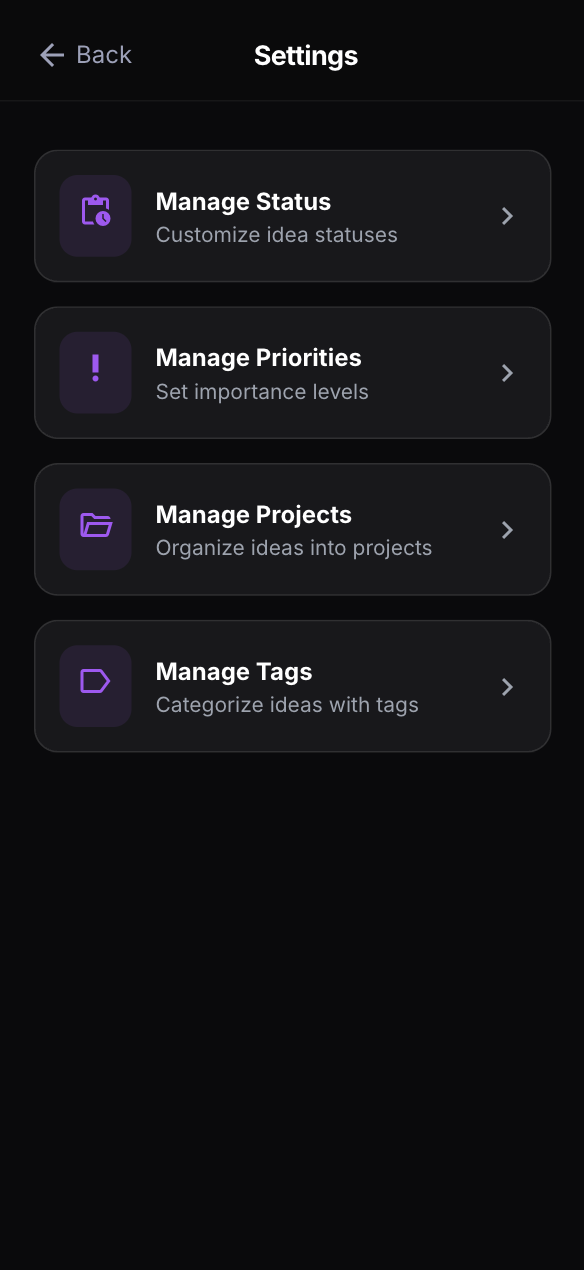
Turn on projects, tags, statuses and priorities in Settings when they become useful. Add project, tag, status or priority context to an idea when useful. Turning a tool off hides its controls and does not delete existing organisation data.
Find a thought and move it forward
Search idea titles and detailed thoughts in the loaded collection. Optional filters and sorting help narrow the list; Kanban uses statuses to arrange ideas on a board. Enabling Kanban also enables statuses.
A simple workflow
Capture
Give a thought a short title, add details if you want, and save it to your account.
Organise when useful
Choose the tools you need in Settings, then add optional context to your ideas.
Find and revisit
Search your ideas, open one to edit it, or use an enabled status board to plan a next step.
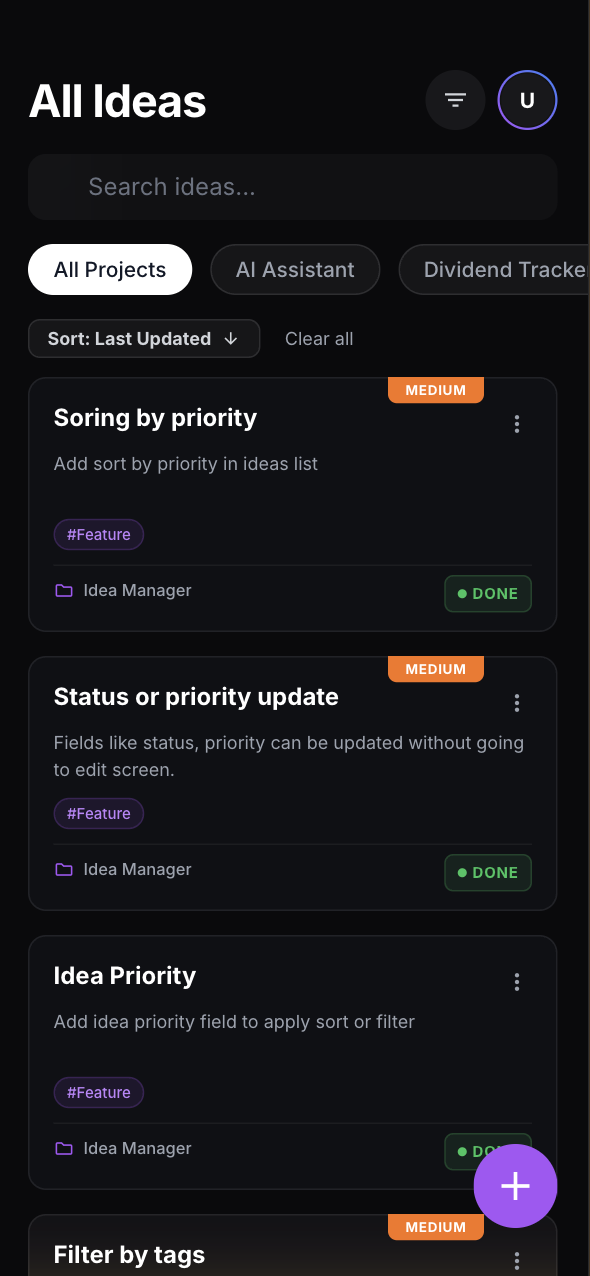
A look inside the app
Browse your ideas, capture a new thought and manage the tools you use to organise them.
Understand what encryption covers
When encryption is unlocked, the current implementation encrypts new idea titles and detailed thoughts, project names and tag names in the client with AES-256-GCM. Content keys are wrapped with RSA-OAEP; the password protects the stored private-key copy. Existing legacy records can remain unencrypted until migrated.
Account details, timestamps, relationships, status and priority names, feature preferences and feedback are not covered by this content encryption. Decrypted content is visible in your open app session. Use a trusted browser and device; encryption depends on the scripts delivered to your browser.
These boundaries describe the inspected source implementation, not a security audit of your deployed account. Read the privacy policy for data handling and sharing limits, and the unlock and recovery guide before changing access.
Frequently asked questions
Do I have to organise every idea?
No. A title and optional details are enough. Organisation tools can be enabled when useful. Turning them off hides their controls while preserving existing data; older accounts may start with more tools enabled.
Is everything in my account encrypted?
No. Content encryption has specific limits, and older records may still be unencrypted. Check what encryption covers and the privacy policy.
Why am I asked to unlock after reopening?
The current web implementation keeps the unlocked key in memory. A restarted session can require your password again even if you are still signed in. A password-reset email alone cannot restore encrypted content. Read unlock and recovery guidance.
Can I use the app without a connection?
A cached app shell may open, but loading, saving and synchronising account data require a connection. Do not assume an offline edit was saved. Check connection and saving guidance.
Get in touch
Have a question about Idea Manager? Contact Eternal Academy.